
To create or restore a backup of your Microsoft Dynamics CRM Online, Global Administrators needs to raise a ticket.
With Microsoft Dynamics CRM Online Update 1, Global Administrators now have a capability to create and restore backup on-demand.
From CRM Online Administration Center, Backup & Restore tab is now available.
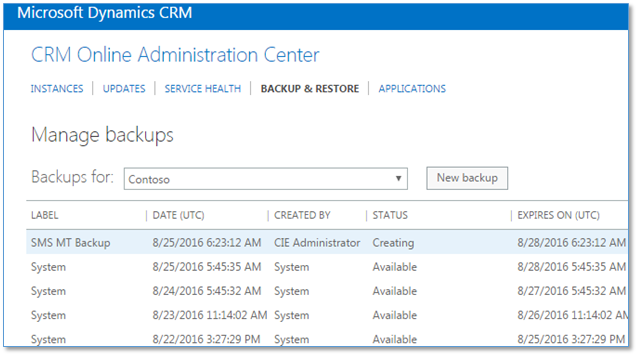
What you need to know
Below are the things you need to know that you must consider for your planning.
- System backup is done daily.
- Systems backup is labelled as System.
- System backup does NOT incur a space from Dynamics CRM storage.
- On-Demand backups are backups manually triggered.
-
System and On-Demand backups’ retention is 3 days.
- The expiration is indicated in the column.
How to create a backup?
- Login and navigate to CRM Online Administration Center
- Click
Backup & Restore tab.

- Select the instance you want to back
-
Click
New backup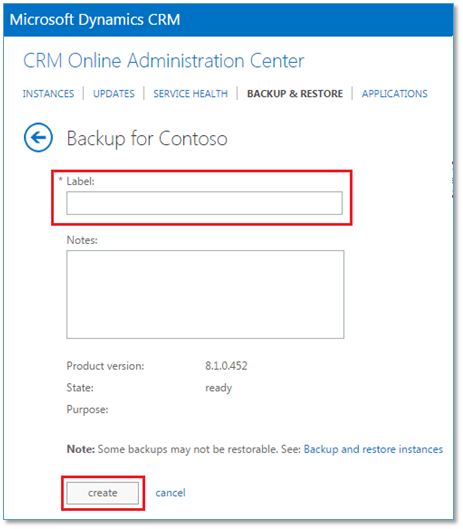
- Put a descriptive label.
-
Click
create.
- The initial status is Creating. Once ready, it will be Available.
How to restore a backup
First, you can only restore a backup from a Sandbox instance, therefore you need to switch instance. If you see that the Restore button is disable, it means you’re instance is still in Production.
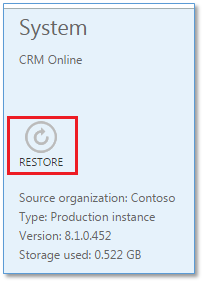
PS: I will have a separate blog on how to Promote a Production instance to Sandbox and vice versa including the scenario why you will do it.
- Login and navigate to your CRM Online Administration page.
- Select the instance.
- Select the Backup (or restore point)
-
Click Restore.
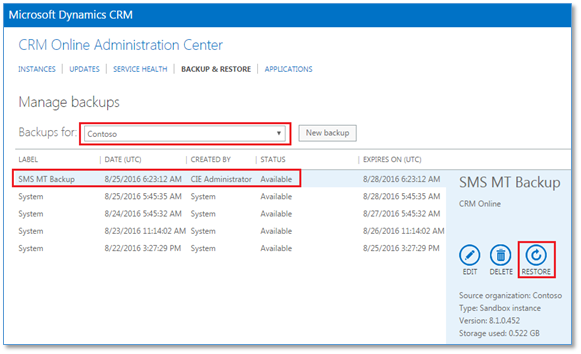
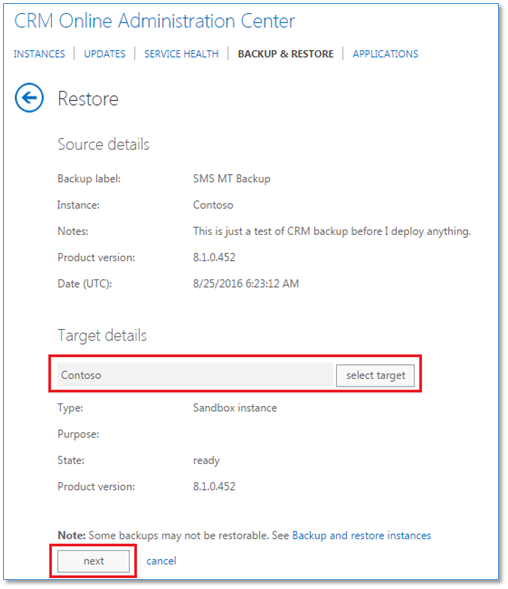
- A new form is loaded
- Select target environment
-
Click Next
-
Confirmation form is loaded
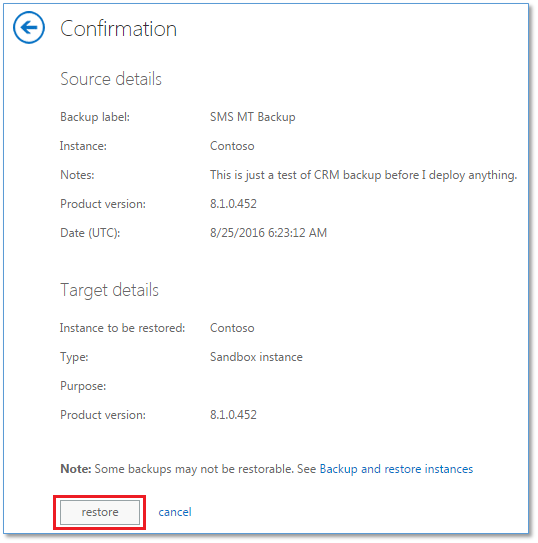
- Click
restore. -
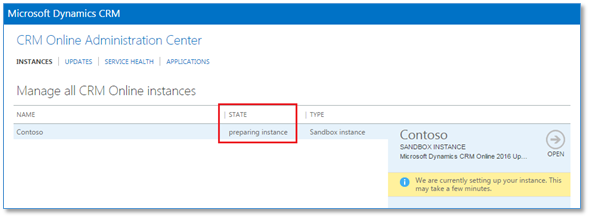
From Instances tab, you’ll notice that the status is preparing instance.
-
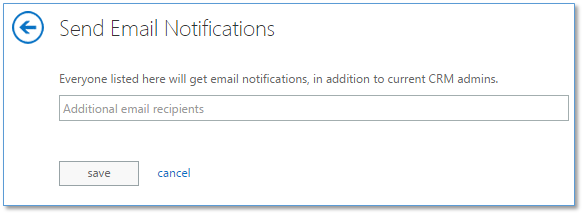
Optional – you can setup the notification to get an alert when the instance is ready.
- Remember, you are in Sandbox type. Promote your instance to Production.
Benefits
From development perspective, rollback procedure becomes easier. Restore point can be created before any deployment is performed.
If there is any issue with the deployment, going to the defined restore point is just a few steps.
You must also take into consideration the risk of potential data-loss during for the transactions that happened after the creation of restore point/backup.
Keywords
Microsoft Dynamics CRM Online Backup & Restore; How to create backup in CRM; How to restore a backup in CRM; Microsoft Dynamics CRM Online 2016 Backup and Restore;
 Power Platform Iter
Leave a comment