
Background
I’m currently working on a global implementation of Microsoft Dynamics CRM Online for one of our clients. And when we say global, it has:
- Multiple IT administrator, one for each system and system between each system.
- Considerably large amount business users (good for business)
A typical medium to large scale customization Microsoft Dynamics CRM implementation will require at least 4 environments as follows: Dev, Testing, UAT, Production.
A typical business user does NOT need to have an access to all environment.
|
NAME |
DEV |
TEST |
UAT |
PROD |
| Rolando |
X |
X |
||
| Mark |
X |
|||
| Richard |
X |
Table 1: Shows a list of name which cross-reference to which environment they should have an access
By default, all users with Microsoft Dynamics CRM Online license, will have access to all Dynamics CRM instances under the Office365 tenant account. It means, Rolando, Mark, and Richard’s profile will be listed in the Dynamics CRM Users, in all 4 environments.
So the question, how are you going to provide a control on that?
The quick and dirty way is not to assigned any security role to the user that should not have an access to the CRM environment.
However, that means that the user profile of users that does not need to have an access or not allowed to access, will appear in the list of users. And this is a potential risk to Dynamics CRM administrators to accidentally assign a security role to a user because notification that there are users with no assigned security is present in the Dynamics CRM instance.
What
This is one of the goal of assigning an Office 365 security group to the Instance Security Group of Microsoft Dynamics CRM. It will provide a layer of authorization and identify which group of users is authorized to access the specific Microsoft Dynamics CRM instance.
By assigning an Office365 security group, it will minimize the number of users listed in Microsoft Dynamics CRM Online user list, thus easier to manage.
How
Below are the high-level steps which we will define in detail later
- Create an Office 365 security group.
- Assign the Office 365 security group in Dynamics CRM “instance security group” field.
Creation of Office 365 Security Group is below
- Login to your portal and navigate to the Office 365 admin center.
-
Click Groups

-
Click Add a group (1)
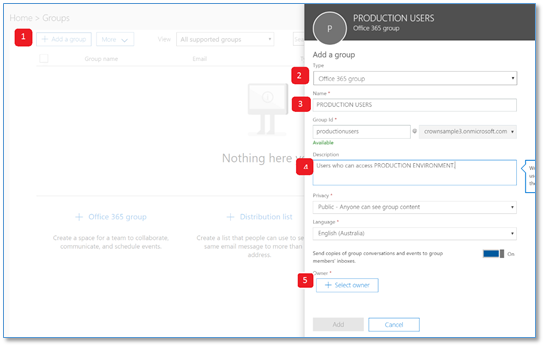
- Select Office 365 group (2)
- Provide Name (3)
- Provide Description (4)
- Click Select Owner (5)
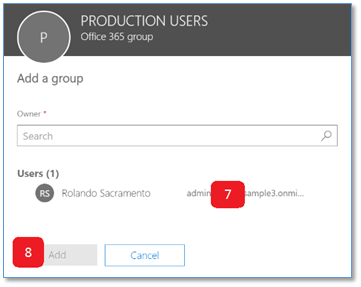
- Search & click the name of the owner (7)
-
Click Add (this will close the dialog below)
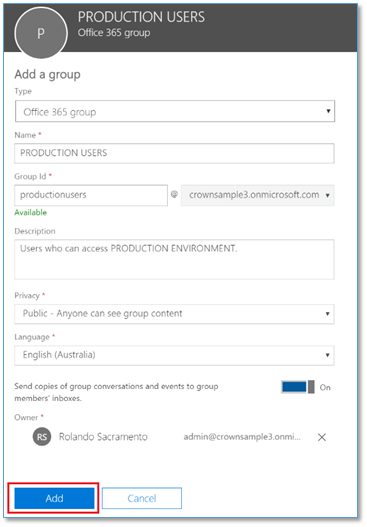
- Click Add (in the main form)
Assign the security group in Dynamics CRM instance security group
-
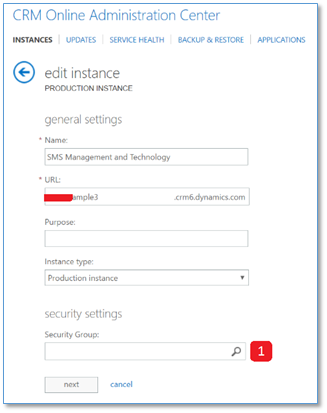
From Admin centers, click CRM

- Select/highlight that you wish to assign a security group.
-
Click Edit
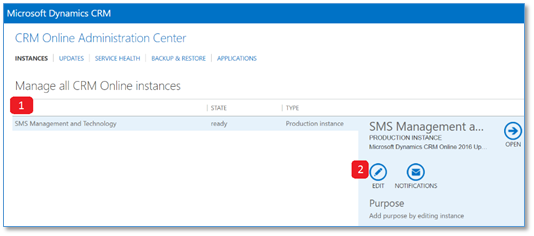
- Click magnifying glass icon
-
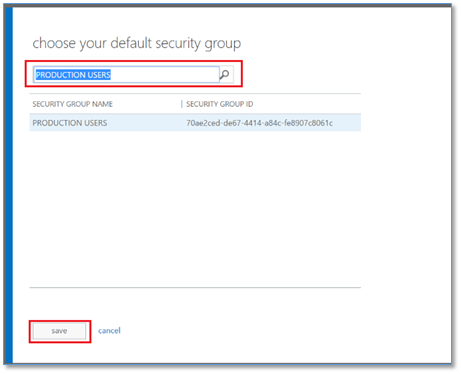
- Search and double click the name of the security group we created earlier.
- Click Save
-
Click Next
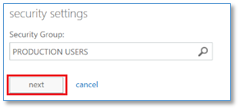
-
Click Save

Then you are all set.
Only users that are listed in the PRODUCTION USERS security group can access the Dynamics CRM instance above.
Conclusions
Office 365 Security Group can be used
- Manage Dynamics CRM users to which environment they are allowed to access
- Enable (include) and Disable (remove) users from a specific Dynamics CRM instance
It will also resolve the display notification that a user does not a have privilege (not allowed users) because the users who should have an access was already filtered.
For bullet number 2 above, please note that when you remove a user from the security group which have an allocated security role, when it has been re-added, it will retain the previous security that the user has.
Keywords
Office 365 Security Group, Dynamics CRM Office 365 Security Group, Instance Security Group
 Power Platform Iter
Leave a comment