
In our previous blog (Integrate Azure Key Vault in your Application) , we’ve shared how to setup a key vault to secure sensitive information that will be used by our application.
In this post, we will show you how to use Key Vault with Azure Function to store sensitive information like credentials.
Specifically, Key Vault will be used from the configuration.
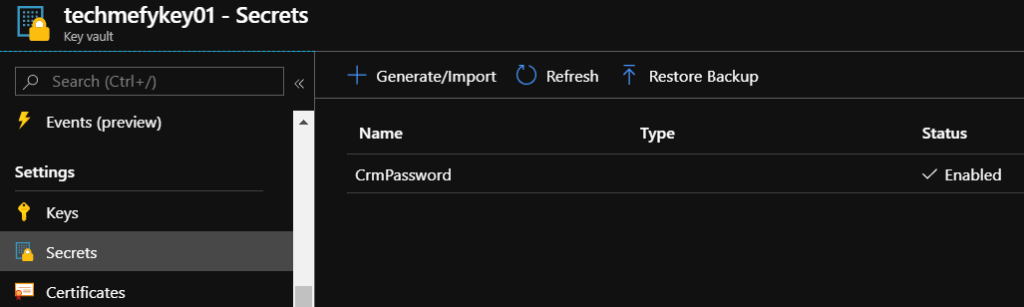
A prerequisite of this post is, you must already have a Key Vault, with a secret key “CrmPassword”, like shown below.
Azure Function
Create an Azure Function (.NET) with an HttpTrigger function.
Add the following code.
var password = Environment.GetEnvironmentVariable("CrmPassword", EnvironmentVariableTarget.Process);
    log.LogInformation($"Password: {password}");
The resulting code of the function is like below.
#r "Newtonsoft.Json"

using System.Net;
using Microsoft.AspNetCore.Mvc;
using Microsoft.Extensions.Primitives;
using Newtonsoft.Json;

public static async Task<IActionResult> Run(HttpRequest req, ILogger log)
{
    log.LogInformation("C# HTTP trigger function processed a request.");

    var password = Environment.GetEnvironmentVariable("CrmPassword", EnvironmentVariableTarget.Process);
    log.LogInformation($"Password: {password}");

    string name = req.Query["name"];

    string requestBody = await new StreamReader(req.Body).ReadToEndAsync();
    dynamic data = JsonConvert.DeserializeObject(requestBody);
    name = name ?? data?.name;

    return name != null
        ? (ActionResult)new OkObjectResult($"Hello, {name}")
        : new BadRequestObjectResult("Please pass a name on the query string or in the request body");
}
Enable System Assigned Identity
In key vault, we have to define the privilege of the principal that we will grant an access. To enable our function to do this, we have to enable the system assigned identity of our function. This will allow us to set it as principal in the access policy for key vault.
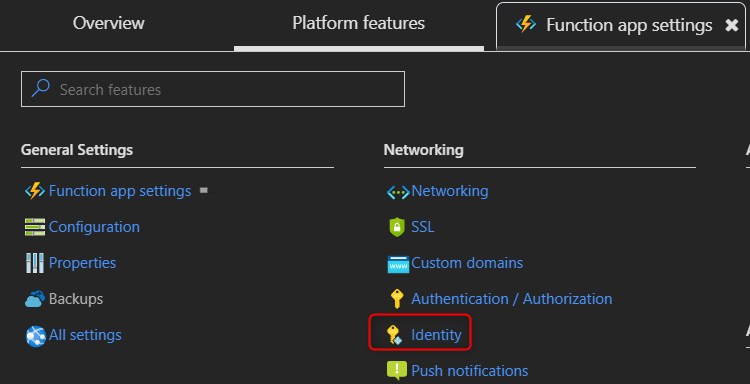
Navigate to your Function app settings of your function. Click Identity.
Set the status to On, like shown below. Click Save.
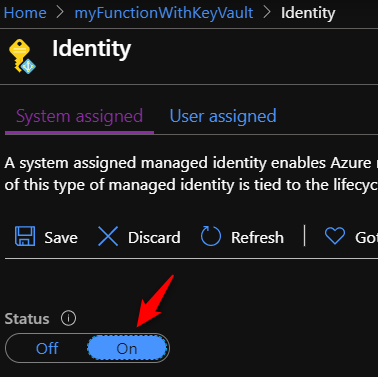
This will Enable system assigned managed identity in Azure Active Directory.

Configuration
Navigate to your function’s configuration. Add a new application setting like shown below.

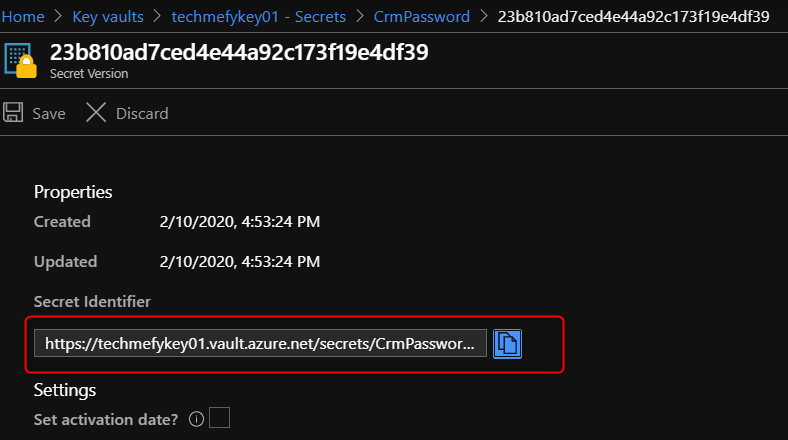
At this point, we will need to use the Secret Identifier CrmPassword secret. Navigate to Key Vault -> Secrets -> CrmPassword and copy the URL.
Name: CrmPassword
Based on microsoft documentation, the format isof the value is @Microsoft.KeyVault(SecretUri=Secret Identifier)
Thus the value is like
@Microsoft.KeyVault(SecretUri=https://techXXXXX.vault.azure.net/secrets/CrmPassword/23b810ad7cedbI44a92c173f19e4df39)
If you did it correctly, you will notice that the status is Key Vault Reference (in green icon), like below.

Does it work?
Run your your function app, you should see the below.

 Power Platform Iter
Leave a comment