
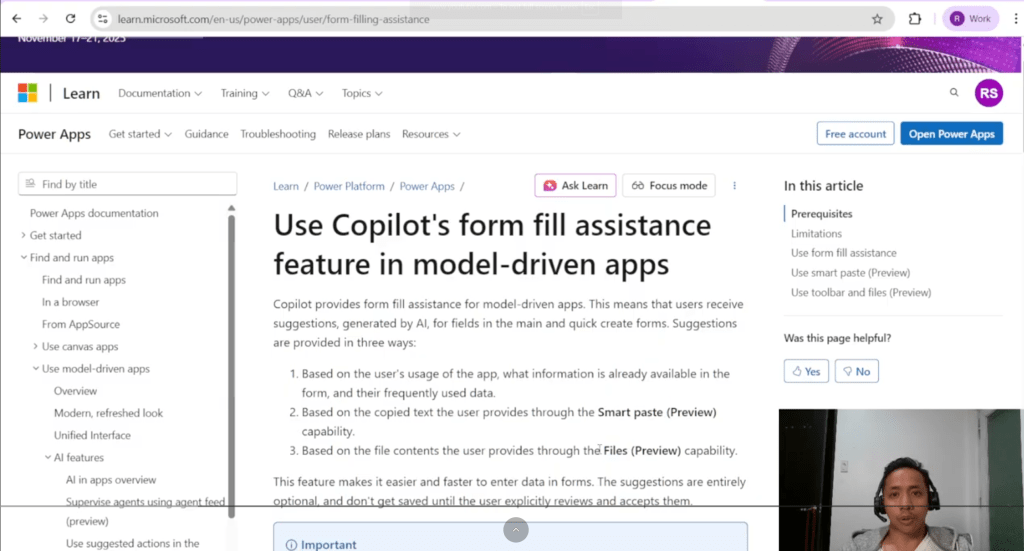
Unlock faster, smarter form filling in Power Apps.
In today’s fast-moving digital workplace, speed, accuracy, and usability are crucial.
Data entry remains one of the most time-consuming tasks across enterprise systems — especially within Microsoft Dynamics 365 and model-driven Power Apps.
Microsoft’s new Copilot Form-Filling Assistance aims to change that by leveraging AI to suggest form values intelligently, allowing users to complete records faster and with fewer errors.
What Is Form-Filling Assistance?
Form-Filling Assistance is an AI-powered Copilot capability that helps users complete data-entry forms in model-driven apps by offering relevant suggestions for blank or partially filled fields.
How it works:
- As a user fills in a form, Copilot analyses existing entries, recent records, clipboard content, or uploaded files.
- It then suggests possible values for other fields.
- Users can accept or reject suggestions — nothing is saved automatically.
Key Preview Features:
- Smart Paste: Paste structured or unstructured text (or even images) into a form, and Copilot interprets what data belongs in which fields.
- File Upload (Preview): Upload a .txt, .docx, .csv, .pdf, or image file (.png, .jpg, .jpeg, .bmp), and Copilot extracts data to fill form fields automatically.
Why This Matters
For organisations running Microsoft Dynamics 365 or Power Apps, this new feature enhances productivity and accuracy across teams:
✅ Reduces repetitive manual data entry
✅ Minimises user fatigue and input errors
✅ Accelerates form completion and onboarding
✅ Maintains control — users decide what to accept
✅ Provides a modern, AI-enhanced UX for data-intensive workflows
Getting Started: Key Requirements
Before enabling Form-Filling Assistance, make sure the following conditions are met:
- You’re using a model-driven app with the modern refreshed look enabled.
- The “AI form fill assistance” feature is activated under Environment > Settings > Features.
- The fields you want to enable must have Allow form fill assistance toggled on.
- Supported for Dynamics 365 (GA) and Power Apps (Preview).
- Only certain column types are currently supported — see Limitations below.
User Experience Overview
- Open a new record form (main or quick-create).
- Copilot analyses your data, clipboard, or uploaded files.
- Suggested values appear inline with icons and tooltips.
- Accept one suggestion or use “Accept All” from the notification bar.
- Overwriting or skipping suggestions is fully supported.
- Optionally, provide feedback (👍 / 👎) to help improve future results.
Limitations & Considerations
While powerful, this feature has several current limitations:
⚠️ Supported forms: Only works on main forms
⚠️ Supported fields: Only text, numeric, choice, and date fields are compatible.
⚠️ Not supported: Fields with column security, custom controls, or heavy UI customisation.
⚠️ Availability:
- Dynamics 365: Generally Available (GA)
- Power Apps: Still in Preview, subject to changes.
⚠️ Data quality dependency: Suggestions rely on existing user data, clipboard content, or uploaded files — poor data yields poor results.
⚠️ Governance: Review compliance implications if AI-generated suggestions are accepted into critical data fields.
Conclusion
The Copilot Form-Filling Assistance represents another step forward in Microsoft’s journey toward intelligent automation within the Power Platform.
By reducing manual entry, improving user experience, and keeping human oversight intact, this feature can significantly boost productivity — especially in Dynamics 365 and enterprise environments where data entry is frequent and structured.
For organisations like Peak D365, which specialise in Dynamics 365 and Power Platform solutions, this capability is an opportunity to:
- Deliver smarter, AI-assisted data entry experiences to clients.
- Integrate Copilot features into your ongoing implementation strategy.
- Reinforce your commitment to leveraging innovation for business productivity.
🎥 Watch our Copilot Form-Filling Assistance demo here:
💡 Tip: Stay tuned for future updates when this feature becomes Generally Available.
 Power Platform Iter
Leave a comment